Quick Answer
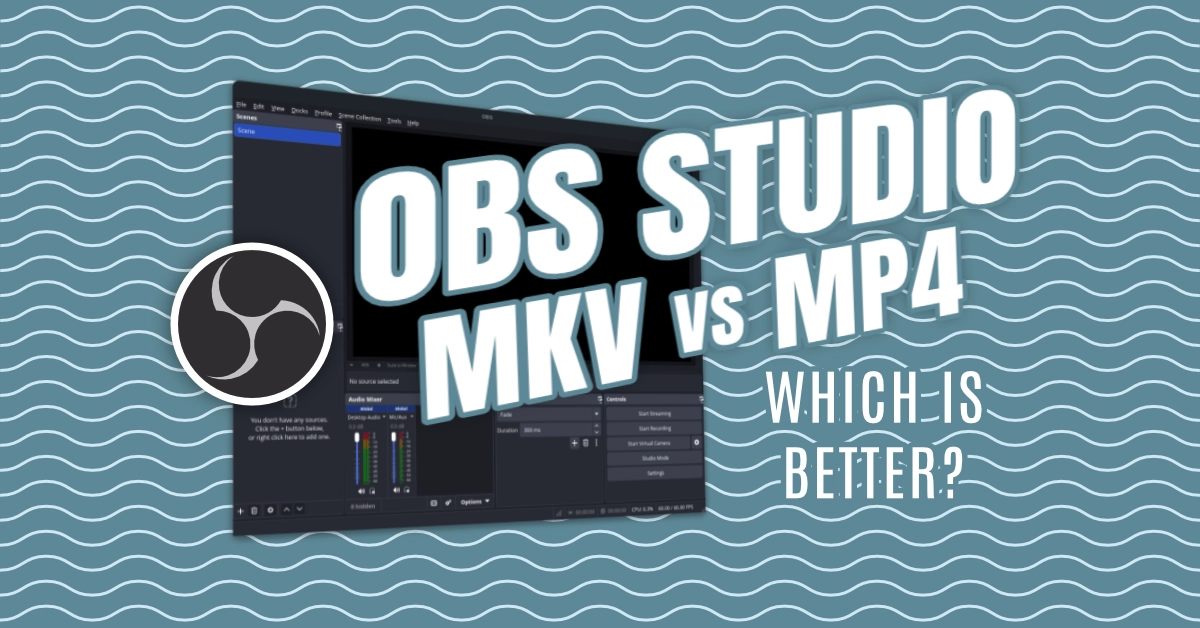
Both MKV and MP4 work well in OBS Studio. For most, MP4 is easier for sharing (works instantly on YouTube, social media, email), while MKV prevents crashes – it’s more forgiving if you need to record for hours with no interruptions.
Think of these formats as camera bags:
- MP4 = Zippered bag that closes cleanly, easy to pack and ship anywhere
- MKV = Expandable bag with no seams that won’t rip even with a 10-hour marathon session
Both carry your footage perfectly – it’s about what matters for your specific situation.
When to Use MP4
Choose MP4 if you:
- Need quick sharing to social platforms (YouTube, Twitter/X, Instagram)
- Want to email your recordings without technical hurdles
- Keep sessions under 4 hours
- Don’t mind occasional recording crashes cutting off the middle of a session
- Want smaller initial processing on slower systems
Why MP4 wins for sharing: Every major platform plays it natively. Drag to YouTube and it uploads without encoding delays. Send via email – no complaints from recipients.
When to Use MKV
Choose MKV if you:
- Record long streams or tutorials (4+ hours)
- Want “safe mode” recording that won’t fail on crashes
- Don’t mind converting files before sharing
- Record gaming, teaching, or presentations with interruptions
- Value data integrity over convenience
Why MKV saves you from crashes: MKV uses Matroska’s smart fragmentation. If OBS crashes mid-recording, you get two complete files instead of a corrupted mess in the middle. Convert the file once, then distribute as MP4.
Real-World Performance Comparison
| Feature | MP4 (H.264) | MKV (H.264) |
|---|---|---|
| Recording stability | Can fail on crashes | Rarely fails completely |
| File recovery | May lose middle segments | Often has recoverable segments |
| Platform compatibility | Universal acceptance | Requires conversion for some platforms |
| Best for | Short demos, quick shares | Long sessions, teaching |
Setup Guide: Quick and Easy
Recording as MP4
- Go to File → Settings → Output
- Under Recording, set “Record format” to MP4
- Click Apply and OK
- Press Alt+F9 to start recording
Recording as MKV
- Go to File → Settings → Output
- Under Recording, set “Record format” to MKV
- Click Apply and OK
- Press Alt+F9 to start recording
Converting MKV to MP4 (if needed)
Download HandBrake (free, open source):
- Download from handbrake.fr
- Open MKV file
- Select “YouTube” preset for web sharing
- Click “Start Encode”
What About H.265 / HEVC?
OBS lets you choose H.265 encoding for smaller file sizes:
- +50% compression compared to H.264
- Works with both MKV and MP4
- Downside: Requires more powerful GPU/CPU
- Best for: 4K recordings, storage-saving situations
Stick with H.264 for compatibility if you’re sharing widely. Use H.265 if you prioritize storage savings.
Our Recommendations by Use Case
For Streamers
MKV is your reliable friend. Crashes happen. Your recordings will survive.
For YouTube Creators
MP4 saves time on upload since platforms love it natively. Convert MKV once to MP4 on your desktop, then upload.
For Tutorial Creators
MKV prevents disasters during long recorded lessons.
For Gaming Recordings
Both work well. Choose based on whether you want crash-resilience (MKV) or instant sharing (MP4).
For Quick Screenshots/Short Recordings
MP4 – short session, easy to email or share immediately.
For Live Stream Archives
MKV – long sessions, live streams can crash or disconnect.
The Bottom Line
Neither format is objectively “better” – they’re tools with different strengths. Think of this decision like choosing between a car:
- A truck (MKV): Robust, survives rough terrain, needs conversion to fit some parking garages
- A sedan (MP4): Easy to fit everywhere, standard fuel works, but can’t handle as much without damage
Suggestions for most?
We recommend starting with MP4 for simplicity, then switching to MKV if you experience recording failures.
Related Resources
- [How to Set Up Your Free OBS Studio]
- [Best Free Open Source Recording Alternatives]
- [Understanding Video Formats for Beginners]
FAQ
Q: Why does my MP4 recording corrupt sometimes?
A: OBS may crash without warning – especially with long recordings or heavy CPU usage. MKV is more forgiving here.
Q: Can I record both MKV and MP4 simultaneously?
A: Not easily. Recording splits resources. Choose one per session, convert if needed.
Q: Will this work on Mac and Linux too?
A: Yes! Both formats work across all operating systems with OBS.
Q: Is there any quality loss difference?
The best recording workflow is the one that fits your life – not the most popular one.
A: No. Both can store identical quality video. It’s purely about container reliability and compatibility.
Share your experience! What format do you use and why? Let us know in the comments below.