What is OBS Studio?
OBS Studio (Open Broadcaster Software) is a powerful, completely free program that lets you record your screen, capture your creative process, capture game footage, and stream to platforms like YouTube, Twitch, Facebook, TikTok, and more. Used by many creators around the world for years, tried and true.
Think of it as your professional screen capture video recording studio in a single application – available to everyone at zero cost.
Why Choose OBS Studio?
Completely FREE and Open Source
Unlike many recording and streaming tools that charge monthly fees or require expensive licenses, OBS Studio is free forever and owned by the community.
Works Everywhere
OBS runs on Windows, macOS, and Linux – perfect for creators who work across different computers.
Extremely Powerful
Professional broadcasters and casual creators alike use this same tool. Whether you’re streaming a gaming session or recording a tutorial for YouTube, OBS delivers professional results.
Customize Everything
The interface might seem complex at first, but OBS lets you add plugins, filters, and scenes to create exactly what you need.
Who Should Use OBS Studio?
Perfect for You If:
- You’re creating YouTube tutorials
- You want to stream online (Twitch, YouTube Live, Facebook, TikTok live etc.)
- You need to record your screen for demonstrations
- You create podcasts or presentations with screen sharing
- You want professional tools with no to little cost
- You already use open source software and value freedom from licensing fees
- You record gaming sessions or capture your work process
Simple Use Case Examples:
- Record a Blender 3D rendering session
- Tutorial video with your webcam and desktop
- Game capture for YouTube uploads
- Webinar recording for your company
- Podcast with PowerPoint or presentation slides
- Software review with screen capture
Quick Comparison: OBS vs Paid Alternatives
| Feature | OBS Studio | Paid Software |
|---|---|---|
| Cost | Free forever | 10-100+ per year or more |
| Open Source | Yes | Usually proprietary |
| Streaming Platforms | All major platforms supported | All major platforms supported (May be limited) |
| Recording Quality | Professional level | Varies |
| Customization | Highly customizable | Limited |
| Platform Support | Windows, macOS, Linux | Often Windows-only |
Bottom line: OBS Studio gives you features worth thousands of dollars for free.
Getting Started in 5 Minutes
1. Download OBS Studio
Visit obsproject.com to download the official version for your operating system.
Note: Always download from the official site to avoid modified or malicious versions.
2. Basic Setup
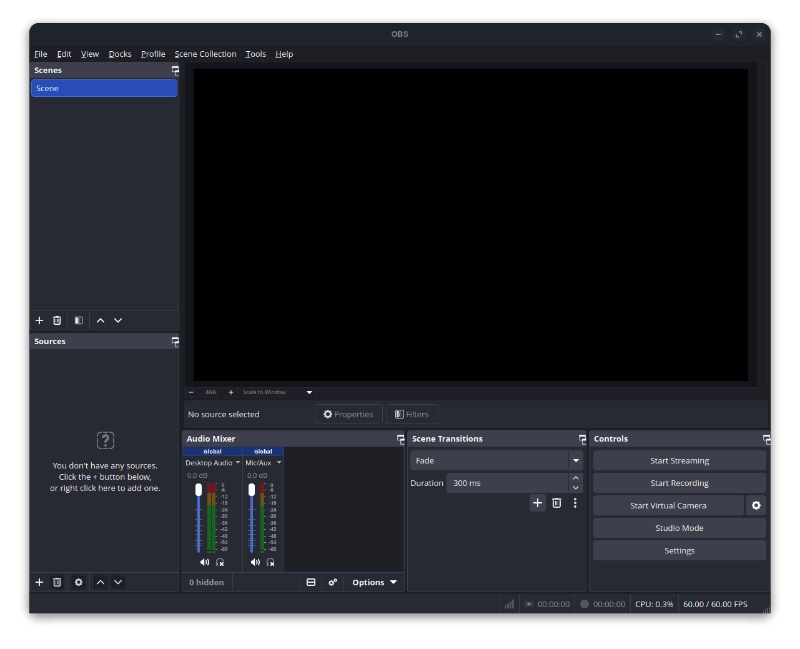
Open OBS and you’ll see three main areas:
- Sources: What you’re capturing (screenshots, webcams, games)
- Scenes: Different layouts (tutorial view, game view, etc.)
- Media: Your audio and video files you can play alongside your recording
3. Your First Recording
- Click + under Sources
- Add Display Capture for your whole screen
- Add Window Capture for specific programs
- Click Start Recording when ready
- Stop to stop recording
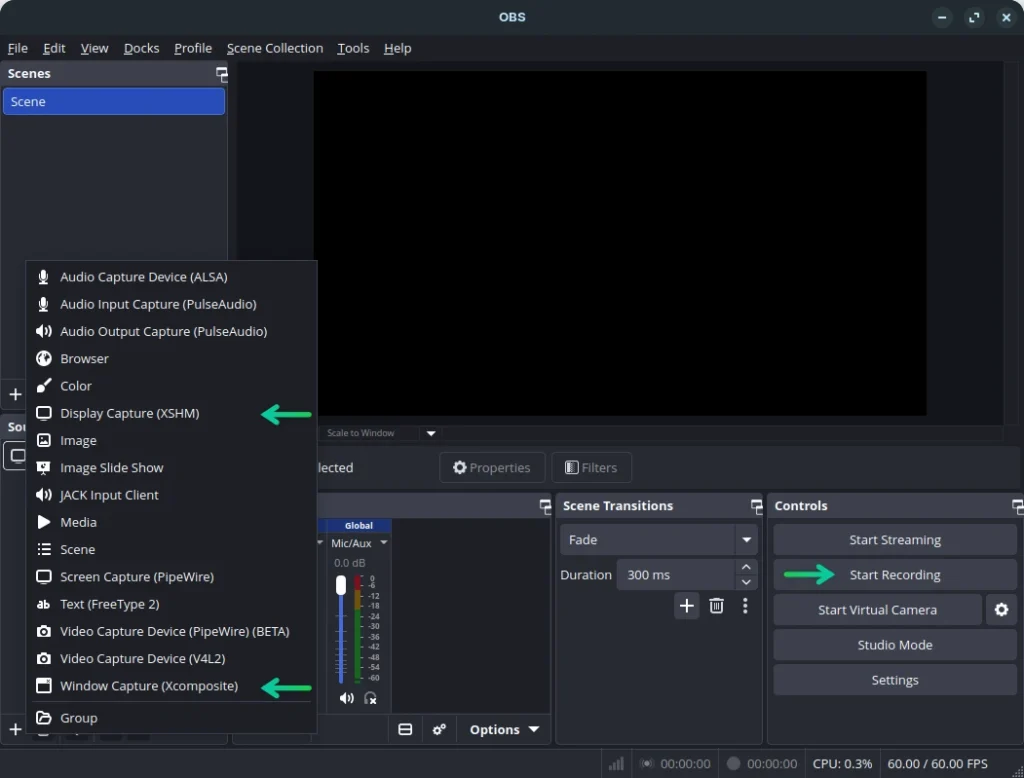
That’s it! Your video is saved in the folder you configured in your settings.
Key Features Explained Simply
Scenes
Different ways to frame your recording and organize it the way you like it. Like chapters in a book:
- “Main Screen” – Your entire desktop
- “Webcam” – Just your camera feed
- “Presentation” – PowerPoint or Keynote slides
- “Game” – Your game window
Switch between them easily during live streaming or editing later.
Sources
The ingredients of your video:
- Display Capture – Your whole screen
- Window Capture – Specific programs and web pages
- Browser Source – Display web content, like a live website
- Media – Video and audio files you play during the stream
- Webcam – Your camera feed
Audio Mixer
Control sound levels for different sources. You can:
- Mute unwanted background noise
- Adjust microphone volume
- Add background music at low levels
- Balance screen and audio levels
Recording Settings
Customize output before you record:
- Format – MP4 or MKV (both work great)
- Quality – Choose based on your needs and computer power
- Bitrate – Balance quality and file size
Tips for New Users
Start Simple
Don’t overwhelm yourself with all features immediately. Basic recording works perfectly fine. Add features as you need them.
Test Before Going Live
Always record a 2-minute test to check audio, video quality, and whether everything appears and functions as expected.
Use Presets
Save different configurations for streaming versus recording. You’ll switch between them without thinking.
Check Your Internet
For streaming, ensure your upload speed matches OBS Studio’s output settings. YouTube and Twitch have recommended minimums.
What Can You Create with OBS Studio?
Tutorial Videos
- Screen capture your software work
- Add voice narration
- Include webcam for personal touch
- Add text, arrows, and highlights
Productivity Recording
- Record your design work in progress
- Capture coding sessions
- Document tutorials or walkthroughs
- Create before/after comparisons
Webinar or Presentation
- Share your screen
- Play PowerPoint/Keynote
- Include webcam for engagement
- Record audio or video of presentations
Gaming Stream
- Capture gameplay
- Add webcam overlay
- Display follower count and chat
OBS Studio Resources
Documentation
Visit docs.obsproject.com for guides and troubleshooting to find out if this software is right for your needs.
Community Forums
Join active discussions on obsproject.com/forum.
YouTube Channels
Keywords to search:
- Streamlabs OBS tutorials
- OBS Studio tutorials
- Creator OBS walkthroughs
Third-Party Plugins
Explore the community on the official forum to find useful enhancements.
Warning: Always verify plugins before installing from unofficial sources.
Common Questions
Q: Is OBS Studio really free and safe?
A: Yes. OBS Studio is open source, meaning anyone can review the code. The project has been around since 2012 and has a massive community.
Q: Do I need a powerful computer?
A: You’ll get decent results on most modern systems. Adjust encoding settings (QSV, NVENC, VAAPI) based on your hardware.
Q: Why are my recordings too large?
A: Check your bitrate settings. Lower values create smaller files; higher values create better quality files.
Q: Can I use OBS for webcam-only streaming?
A: Yes! Add your webcam as a source and record, just like any other video source.
Q: Is there a mobile version?
A: No mobile app is available. However, OBS has excellent alternatives for iOS and Android devices like Streamlabs Mobile app.
Join the Creative Community
OBS Studio belongs to a vibrant community of creators who share tips, troubleshooting, and encouragement. Whether you’re:
- A beginner learning screen capture basics
- An intermediate creator adding advanced features
- A pro exploring advanced configurations
OBS Studio adapts to your needs at every stage.
This guide is part of Creative Anchor’s mission to help creatives build professional tools without paying monthly fees. OBS Studio stands alongside tools like Blender, GIMP, and Inkscape – powerful, free, and community-owned technology.
Try It Out Today
- Visit obsproject.com
- Download OBS Studio
- Explore the interface
- Record your first screen capture
Welcome to professional creative tools at zero cost! All thanks to the OBS Studio creators that developed such a fine software.
Free and open source software belongs to everyone. Support the community of developers who make these tools available to all creatives worldwide.