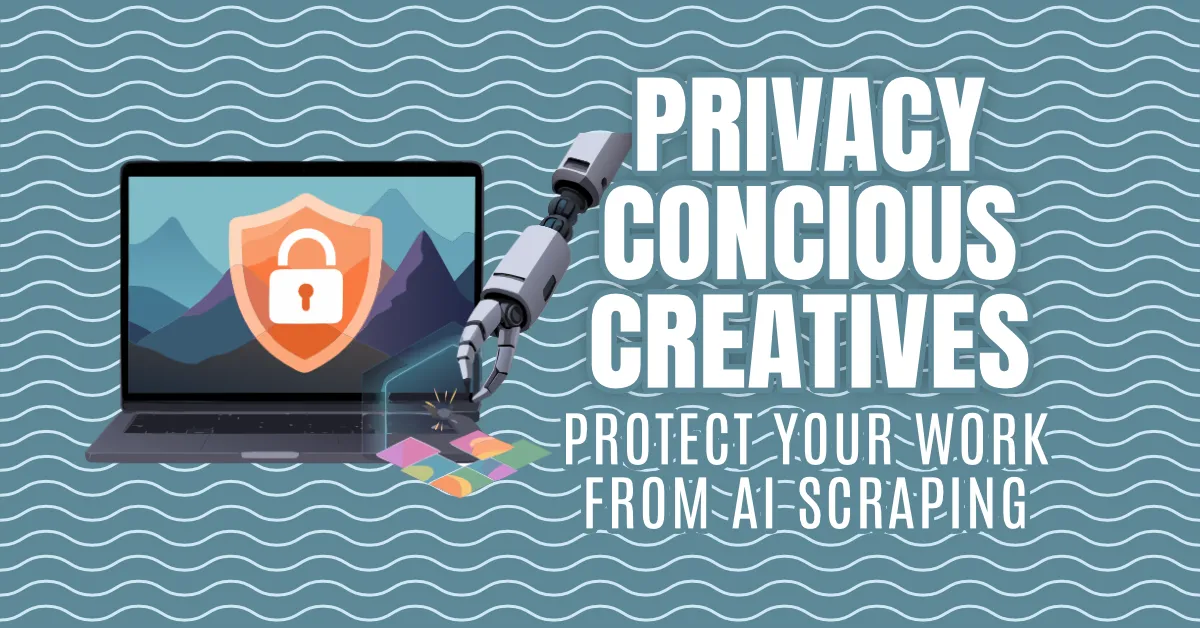
Your creativity shouldn’t be someone else’s training data.
Here’s the uncomfortable truth: your data has become a product. Large corporations scrape creative work from every corner of the internet — social media, portfolio sites, cloud storage, even the tools you use daily — to train AI models that then compete with you. And they’re doing it without asking, without paying, and often without you even knowing.
If you’re a photographer, illustrator, designer, writer, musician, or any kind of creative, this isn’t abstract. It’s your livelihood. Your unreleased concepts, your personal artwork, your client work — all of it is fair game unless you actively stop it.
The good news? You can lock down your system. You can make scraping harder, more expensive, and in some cases impossible. It takes some setup, but once it’s done, it runs in the background while you focus on what matters: making things.
Layer 0: The Foundation — Your Operating System & Phone
Before firewalls, before website settings, before app choices — your OS and phone see everything. Every file you open. Every keystroke. Every network connection. If the foundation leaks, nothing you build on top stays dry.
Windows: The Telemetry Firehose
Windows 10/11 sends a lot of data to Microsoft by default — app usage, search queries, voice input, inking/typing data, error reports, and more. For creatives, this includes filenames, metadata, and potentially file contents via “diagnostic data.”
Quick lockdown (15 minutes): Setting Path Recommended Diagnostic data Settings → Privacy & security → Diagnostics & feedback Required only (not “Optional”) Tailored experiences Same page OffImprove inking & typing Same page OffActivity history Settings → Privacy & security → Activity history Uncheck “Store my activity”App diagnostics Settings → Privacy & security → App diagnostics OffAdvertising ID Settings → Privacy & security → General OffSpeech/voice Settings → Privacy & security → Speech OffLocation Settings → Privacy & security → Location Off (or per-app)
Go deeper with open-source tools: Tool What It Does Link O&O ShutUp10++ One-click telemetry/services/tasks disabler, portable, free oo-software.comWPD (Windows Privacy Dashboard) Granular control over services, tasks, telemetry, Edge, OneDrive wpd.app / GitHubPrivatezilla Modern UI, 80+ tweaks, export/import configs builtbybel.comSophia Script PowerShell automation for full deploy (advanced) GitHub
Enterprise/Pro tip: If you have Windows Pro/Enterprise, use Group Policy (gpedit.msc) or Intune to enforce these at machine level so updates don’t reset them.
⚠️ Recall (Windows 11 24H2+): Microsoft’s “Recall” feature snapshots your screen every few seconds for AI search. Disable immediately: Settings → Privacy & security → Recall & snapshots → Turn off. Or uninstall via Optional features.
macOS: Better Defaults, But Not Perfect
Apple markets privacy hard — and they are better than Windows/Google. But “better” ≠ “zero collection.”
What macOS collects by default:
- Siri/Dictation audio (opt-in since macOS 13, but check)
- Analytics & improvements (crash logs, usage stats)
- Significant locations (Maps, Photos memories)
- App usage for “personalized ads” in App Store/News/Stocks
Lock it down: Setting Path Action Analytics System Settings → Privacy & Security → Analytics & Improvements Uncheck allApple Advertising Same → Apple Advertising OffSiri/Dictation Siri & Spotlight → Siri Requests Delete history, disable if unusedLocation Services Privacy & Security → Location Services Per-app only; off for system services you don’t needSignificant Locations Same → System Services → Significant Locations Clear history, disableiCloud Analytics Apple ID → iCloud → iCloud Analytics Off
Firewall + Network Monitor (essential):
- Little Snitch (obdev.at) — Gold standard for outbound connection monitoring. Paid, worth every euro.
- LuLu (free, open source) — objective-see.com — Lightweight alternative by Patrick Wardle.
- Built-in firewall — Enable: System Settings → Network → Firewall → On → Options → “Block all incoming” + “Enable stealth mode.”
Gatekeeper & Notarization: macOS only runs notarized apps by default. For unsigned local tools (common in creative workflows), right-click → Open, or xattr -d com.apple.quarantine /path/to/app. Don’t disable Gatekeeper globally.
Linux: You’re in Control (And Responsible)
Linux doesn’t phone home by default — but your distro might. Distro Telemetry? Notes Ubuntu Yes (opt-out installer) Snap store telemetry; use --no-telemetry flag or switch to Flatpak Fedora Opt-in (anaconda) Very transparent; easy to decline Arch/Manjaro No You build what you want Linux Mint No Explicitly anti-telemetry Pop!_OS Opt-in Hardware metrics only NixOS No Configuration = source of truth
Hardening checklist:
- Firewall:
ufw enable+ufw default deny incoming+ufw default allow outgoing(or use OpenSnitch — Linux port of Little Snitch, GitHub) - DNS: Use systemd-resolved with DNS-over-TLS (Cloudflare/Quad9/NextDNS) or dnscrypt-proxy
- Flatpak permissions:
flatpak permission-show/flatpak permission-set— restrict filesystem/network per app - AppArmor/SELinux: Keep enabled (default on Fedora, Ubuntu)
- Kernel hardening:
sysctl.d/99-hardening.conf— disable rare filesystems, restrictdmesg,kptr_restrict, etc.
For creatives on Linux: The local-first tool ecosystem is native here. Krita, Inkscape, Penpot, Obsidian, OBS, Blender, Darktable, Ardour — all first-class citizens.
Smartphones: The Sensor Suite in Your Pocket
Your phone has: GPS, mic, camera, accelerometer, gyroscope, proximity, magnetometer, barometer, UWB, Bluetooth, Wi-Fi, NFC, 5G. Apps access these. The OS accesses these. Carriers access cell tower data.
iOS (iPhone/iPad) — Best Mainstream Option
Apple’s architecture: on-device processing, app sandboxing, hardware encryption, Lockdown Mode.
Essential settings (Settings → Privacy & Security): Category Action TrackingOff (App Tracking Transparency) Location ServicesPer-app: “While Using” or “Never” — System Services → Off for: iPhone Analytics, Routing & Traffic, Significant Locations, Product Improvement AnalyticsOff (Share iPhone & Watch Analytics, Share with App Developers) AdvertisingLimit Ad Tracking: On / Personalized Ads: Off Siri & SearchOff for “Listen for Hey Siri,” “Press Side Button,” “Allow Siri When Locked” — Delete Siri History Microphone/Camera Review every app — revoke for anything that doesn’t need it Local Network Review — apps scan your LAN for devices (Chromecast, smart TVs, printers). Revoke for social media, shopping apps. Bluetooth Same — revoke for apps that don’t need peripherals PhotosSelected Photos only (not “All Photos”) for social apps Files & Folders Per-app — restrict to specific folders Lockdown ModeEnable if you’re high-risk (journalist, activist, IP-heavy creative) — Settings → Privacy & Security → Lockdown Mode
iCloud: Disable iCloud Photos if you store unreleased work locally. Use iCloud Advanced Data Protection (end-to-end encryption for backups, notes, photos, etc.) — Settings → Apple ID → iCloud → Advanced Data Protection.
AirDrop: Receiving → Contacts Only (or “Receiving Off”).
Keyboard: Disable “Predictive,” “Smart Punctuation,” “Auto-Correction” if typing sensitive content — keystrokes can be logged for “improvement.”
Android — Choose Your Hardware, Choose Your OS
Stock Android (Pixel, Samsung, etc.) = Google Play Services = always-on data pipeline. Even with tweaks, the framework collects.
Best path for creatives: De-Googled Android. Option Difficulty Best For GrapheneOS (Pixel only) Medium Maximum security/privacy — hardened kernel, sandboxed Play Services (optional), no Google by default CalyxOS (Pixel, Fairphone, Motorola) Easy Balance — microG (open-source Play Services), pre-installed privacy apps (Signal, SeedVault, F-Droid) LineageOS (many devices) Medium Longevity — updates for old phones, no Google apps unless you flash them /e/OS (many devices) Easy Non-technical — pre-degoogled, app store, cloud (Nextcloud) included DivestOS (many devices) Medium Hardened LineageOS fork — automated builds, security patches
If you must stay on stock Android:
- Disable Google Location History, Web & App Activity, YouTube History (myactivity.google.com)
- Settings → Privacy → Ads → Delete advertising ID
- Settings → Location → App permissions → Restrict aggressively
- Settings → Apps → Special app access → “All files access” → Review every app
- NetGuard (no-root firewall, GitHub) — block per-app network
- Trackers/Blockers: NextDNS (DNS-level blocking) or Blokada / AdGuard (local VPN filter)
F-Droid (f-droid.org) — Install this first. It’s the only app store with verified reproducible builds, no tracking, all open source.
Creative apps on de-Googled Android:
- Photo editing: Snapseed (works w/o Play Services), Photo Editor (F-Droid), RawTherapee (via Termux/Linux deploy)
- Sketching: Infinite Painter (Play Store, works w/ microG), Sketchbook (free)
- Notes: Joplin, Standard Notes, Obsidian (via F-Droid/APK)
- File sync: Syncthing (F-Droid) — peer-to-peer, no cloud
- 2FA: Aegis (F-Droid) — open-source authenticator
Quick Comparison: Which Foundation?
Need Best Choice Max privacy, technical comfort GrapheneOS (phone) + Linux (desktop) + self-hosted services Creative pro workflow, some privacy macOS (hardened) + iOS (Lockdown Mode) + selective cloud Windows-only apps (Adobe, etc.) Windows 11 Pro/Enterprise + O&O ShutUp10++ + Simplewall + local-only work machine Budget + privacy Refurbished Pixel + GrapheneOS + Linux laptop (ThinkPad X/T series) Non-technical, “just works” iPhone + Mac + Advanced Data Protection + Little Snitch + no social apps on work devices
Layer 1: Network-Level Protection (Firewalls)
Think of a firewall as a bouncer for your computer’s internet connection. It decides which apps can phone home and which get left at the door.
Simplewall (Windows) — Free, Open Source, No-Nonsense
Simplewall is a lightweight, open-source firewall that gives you per-application control over network traffic. No telemetry, no subscription, no bloat.
Why creatives love it:
- Blocks Adobe, Microsoft, and other creative apps from “phoning home” with usage data
- Lets you create rules: “Photoshop can access the internet for license checks only”
- Portable version available — run it from a USB stick
- Actively maintained by Henry++
Quick setup:
- Download from GitHub Releases
- Run as administrator
- Click “Install filter” to activate the WFP driver
- Watch the log — see what’s actually connecting
- Create block rules for any app you don’t trust
Portmaster (Cross-Platform) — Privacy by Default
Portmaster from Safing takes a different approach: it’s a privacy-first network monitor that works on Windows, macOS, and Linux.
What makes it special:
- SPN (Safing Privacy Network) — optional encrypted relay that hides your traffic from your ISP
- Per-app connection logs with geographic mapping
- Automatic blocking of known trackers, telemetry, and telemetry endpoints
- Open source core (GitHub)
For creatives: Portmaster shines when you’re on public Wi-Fi at a coffee shop or co-working space. Your unfinished client work stays encrypted end-to-end.
Layer 2: Website-Level Protection (If You Host Your Portfolio)
If you run your own site — WordPress, Ghost, static HTML, whatever — you are the gatekeeper. Here’s how to make scrapers’ lives miserable.
Cloudflare: The Free Tier Is Surprisingly Powerful
Cloudflare isn’t just a CDN. Their free plan includes: Feature What It Does Bot Fight Mode Automatically challenges known AI scrapers (GPTBot, CCBot, anthropic-ai, etc.) Rate Limiting Limits requests per IP — stops bulk downloaders Turnstile Privacy-friendly CAPTCHA alternative for forms/login WAF Rules Block specific user agents, countries, or request patterns
Setup in 10 minutes:
- Add your domain to Cloudflare
- Go to Security → Bots → Enable “Bot Fight Mode”
- Go to Security → WAF → Create a rule:
User Agent contains "GPTBot" OR "CCBot" OR "ClaudeBot" OR "anthropic-ai"→ Action: Block - Enable Security → Settings → Bot Fight Mode → “Definitely Automated” → Block
Pro tip: Cloudflare’s AI Labyrinth (currently in beta) traps scrapers in a maze of fake content. Enable it when it rolls out broadly.
The robots.txt Reality Check
Yes, add a robots.txt. No, it won’t stop bad actors.User-agent: GPTBot Disallow: / User-agent: CCBot Disallow: / User-agent: anthropic-ai Disallow: / User-agent: ClaudeBot Disallow: /
Why bother? It establishes intent. If a scraper ignores it, you have clearer legal standing. But don’t rely on it — combine it with Cloudflare, .htaccess rules, and server-level blocks.
Layer 3: The Software You Use Daily (Read the Fine Print)
This is where most creatives get blindsided. Your creative tools may be training on your work.
The Privacy Policy Audit
Before installing any creative software — especially cloud-connected apps — search their privacy policy for these phrases: Red Flag Phrase What It Likely Means “improve our services” Training AI on your files “machine learning” / “AI models” Explicit training consent “anonymized and aggregated” Often not actually anonymous “we may share with partners” Your data goes to third parties “legitimate interest” GDPR loophole for processing without consent
Known Offenders (As of 2024)
Software Concern Mitigation Adobe Creative Cloud Content analysis, “product improvement” Use firewall to block telemetry; opt out in Adobe Privacy Center Canva Design content used for AI features Avoid uploading proprietary work; use local alternatives Figma AI features trained on community files Disable “Content Training” in settings; use local-first tools Notion / Obsidian (sync) Note content could be analyzed Self-host Obsidian with Syncthing; avoid Notion AI Grammarly / LanguageTool Full text sent to servers Use local LLM alternatives (LM Studio, Ollama)
Better Alternatives: Local-First, Open Source
Need Proprietary/Cloud Local-First Alternative Image editing Photoshop Krita, GIMP, Photopea (browser, no account) Vector design Illustrator Inkscape, Penpot (self-hostable) UI/UX design Figma Penpot, Pencil Project Writing/notes Notion, Evernote Obsidian (local files + Syncthing), Logseq, Joplin Grammar check Grammarly LanguageTool (self-hosted), Ollama + local LLM Screen recording Loom OBS Studio, Kooha (Linux) Color palette Coolors Gpick, Colorpicker
Layer 4: Where You Post Your Work
Every platform has a privacy policy. Read it. Specifically, look for:
- License grant — Do you give them a “worldwide, royalty-free, sublicensable” license? That often includes AI training.
- AI opt-out — Do they have a setting to exclude your content from training? (e.g., DeviantArt’s “NoAI” meta tag, ArtStation’s opt-out)
- Data retention — How long after deletion do they keep your files?
- Third-party sharing — Do they sell/license your content to AI companies?
Platform Quick Reference (2024)
Platform AI Training Opt-Out? Notes Instagram/Meta No (opt-out form exists but limited) Assume everything is training data ArtStation Yes (account settings) Epic Games owns it — monitor policy changes DeviantArt Yes (NoAI meta tag) Still scraped by third parties Behance No clear opt-out Adobe-owned Dribbble No clear opt-out Twitter/X No (Grok trains on posts) LinkedIn Opt-out in settings Microsoft-owned Your own siteFull controlBest option — see Layer 2
Strategy: Post finished, public-facing work on social platforms for visibility. Keep process work, unreleased concepts, client files, and high-res originals on your own infrastructure.
Layer 5: Practical Daily Habits
You don’t need to be a security researcher. Just build these habits:
1. Air-gap your most valuable work
- Keep unreleased projects on a machine that never connects to the internet
- Transfer via encrypted USB (VeraCrypt) or local network only
2. Strip metadata before sharing
- Images: EXIF data reveals camera, GPS, timestamps, editing software
- Use ExifTool or ImageOptim to strip it
- PDFs: Remove author, creation date, editing history
3. Watermark strategically
- Visible watermarks deter casual theft
- Invisible watermarks (Steganography, IMATAG, Digimarc) survive screenshots and help prove ownership
4. Use license headers
Every file you create should have a license header or sidecar file:# Copyright © 2024 Your Name # Licensed under CC BY-NC-ND 4.0 # No AI training permitted. See LICENSE.md
Creative Commons has a chooser tool. For “no AI training,” add a custom clause — CC licenses don’t explicitly cover it yet.
5. Monitor for misuse
- Set up Google Alerts for your name + “AI” + “art”
- Use TinEye or Google Lens reverse image search monthly
- Have I Been Trained? checks LAION datasets for your images
A Minimal Viable Privacy Stack (Start Here)
If you do nothing else, do these three things this weekend: Priority Action Time Cost 1 Install Simplewall (Win) or Portmaster (Cross-platform) 15 min Free 2 Move portfolio to your own domain + Cloudflare free tier 1–2 hrs Domain (~$12/yr) 3 Audit one creative app you use daily — read its privacy policy 20 min Free
The Mindset Shift
Privacy isn’t paranoia. It’s professional boundary-setting.
When a client hires you, they’re paying for your eye, your taste, your years of practice — not for your work to become training data for a system that undercuts your rates. When you post online, you’re sharing finished work, not surrendering your creative process.
The tools above aren’t perfect. Determined scrapers will always find ways. But you don’t need perfect — you need “not worth the effort.” Make scraping you expensive, slow, and legally risky. Most scrapers will move to easier targets.
Your creativity has value. Guard it accordingly.
Resources & Links
Firewalls & Network Tools
- Simplewall — Windows firewall, open source
- Portmaster — Cross-platform privacy network monitor
- Little Snitch — macOS classic (paid, excellent)
- LuLu — macOS free, open-source firewall
- OpenSnitch — Linux application firewall (Little Snitch port)
- NetGuard — Android no-root firewall
- NextDNS — DNS-level blocking, all platforms
OS Hardening & Privacy Tools
- O&O ShutUp10++ — Windows telemetry disabler
- WPD (Windows Privacy Dashboard) — Windows granular privacy control
- Privatezilla — Modern Windows privacy tweaker
- Sophia Script — Windows PowerShell hardening automation
De-Googled Android OSes
- GrapheneOS — Hardened, Pixel-only (best security)
- CalyxOS — User-friendly, microG, multiple devices
- LineageOS — Long-term support, many devices
- /e/OS — Non-technical friendly, includes cloud
- DivestOS — Hardened LineageOS fork
- F-Droid — Open-source app store (install first on de-Googled Android)
Website Protection
Local-First Creative Tools
- Krita — Digital painting
- Inkscape — Vector graphics
- Penpot — UI/UX design (self-hostable)
- Obsidian — Notes/knowledge base
- OBS Studio — Screen recording
- LanguageTool — Grammar checking (self-hostable)
- ExifTool — Metadata stripping
- Syncthing — Peer-to-peer file sync
Monitoring & Rights
- Have I Been Trained?
- TinEye
- Creative Commons License Chooser
- Adobe Privacy Center (opt-out portal)