
Hidden .tmp Video Files on Android: Safe to Delete or Keep?
If you’ve ever plugged your Android phone into a computer and browsed to the DCIM/Camera folder, you’ve probably seen them: files ending in .tmp sitting right next to your actual photos and videos. They’re usually hidden on the phone itself but show up clear as day when you mount the storage on a PC.
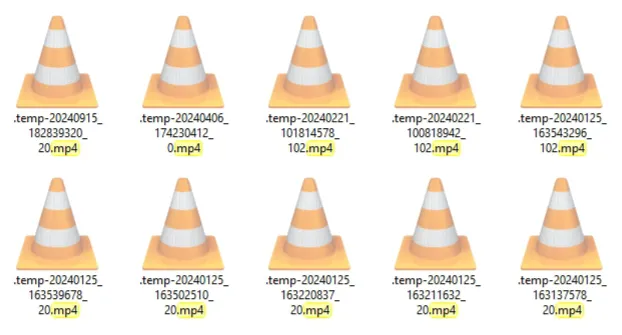
First thing: don’t panic. These aren’t viruses, they’re not corrupted videos, and they’re not some weird Android bug. They’re exactly what the extension says — temporary files.
What .tmp Files Actually Are (The Technical Reality)
When your phone records a video, the camera app (or MediaRecorder API underneath) doesn’t write directly to the final .mp4 file. It uses an atomic write pattern: write data to a temporary file first, then rename it to the final name once recording completes successfully.
This is standard practice — it prevents corrupted files if something goes wrong mid-write. The temp file typically gets a .tmp extension (sometimes .mp4.tmp) and lives in the same DCIM/Camera folder as the final video.
The problem? Sometimes that final rename step never happens.
Common scenarios that leave .tmp files behind:
- You stopped a video recording before it properly saved (hit stop too fast)
- The phone battery died mid-recording
- The camera app crashed during save
- Storage filled up before the file could finalize
- A file transfer to computer/cloud got cut off
- A known CameraX/Scoped Storage bug on Android 10+ (API 29+) where the temp file gets created but the final rename fails
In each case, the temporary file never got renamed to its final format. It just sits there, taking up space — sometimes hundreds of megabytes or even gigabytes.
The 0KB Companion File Mystery
Here’s something users often notice: a .tmp file (say, 600 MB) sitting next to a matching .mp4 file that’s 0 bytes.
This happens when the atomic write partially completes — the system creates the final filename as a placeholder (0 KB), writes all the video data to the .tmp file, but crashes before the rename swap. You end up with the data in the wrong file.
Are They Safe to Delete?
Short answer: yes, almost always — but check first.
These .tmp files are incomplete by definition. The MP4 container (the “wrapper” that tells players where frames start/end) was never finalized. Specifically, the moov atom — the index at the end of an MP4 file — was never written. Without it, media players can’t read the file.
Delete them if:
- You’re sure the corresponding real video/photo already exists (check timestamps and file sizes)
- The .tmp file is old (days/weeks old)
- There’s a healthy MP4 next to it with the same timestamp
- You have no reason to believe a save was in progress
Pause before deleting if:
- You just recorded something and the phone is still processing (wait a few minutes)
- A transfer is actively running
- You see a large .tmp file with no matching MP4 — this might be a recording you care about
Can You Recover Video from a .tmp File?
Sometimes — but it’s not what those “recovery apps” promise.
Since the raw H.264/HEVC video stream is in the .tmp file (just missing the container header), technically skilled users have recovered footage by:
- Renaming
.tmpto.mp4and trying to play it (works if moov atom was written at end) - Using tools like
ffmpegto rewrite the container:ffmpeg -i input.tmp -c copy output.mp4 - Using specialized tools like Untrunc, MP4Box, or Video Repair Tool that can reconstruct the moov atom from a working reference file from the same camera
But: Most “recovery apps” on the Play Store are snake oil. They can’t magically rebuild a missing moov atom without a reference file. If the recording was interrupted before any index was written, the raw stream has no frame boundaries — it’s forensic-level work, not an app tap.
If you genuinely lost an important recording, your best bet:
- Check cloud backup (Google Photos, OneDrive, etc.)
- Check the phone’s trash/bin if your gallery app has one
- If you have another working video from the same camera/app, tools like Untrunc can sometimes use it as a reference to repair the .tmp file
How to Handle Them
On your computer (easiest):
- Connect phone via USB, choose “File Transfer” (not “Charge only”)
- Navigate to
[Phone Name]\Internal storage\DCIM\Camera - Sort by file type or search for
.tmp - Spot-check: compare timestamps/sizes with neighboring MP4 files
- Select orphaned .tmp files and delete
On the phone:
- Use a file manager app (Files by Google, Solid Explorer, Material Files)
- Enable “Show hidden files” in settings
- Browse to DCIM/Camera and delete .tmp files
Pro tip: Before mass-deleting, do a quick spot-check. A 2 GB .tmp with no matching MP4 might be a failed recording you care about. But if there’s a healthy MP4 right next to it with the same timestamp, the .tmp is just garbage.
Why Does This Keep Happening?
It’s not a bug — it’s a design trade-off. The atomic write pattern (temp file → rename) is the correct way to write files safely. The alternative — writing directly to the final filename — risks leaving a corrupted, half-written file that looks like a valid video but plays as garbage.
The .tmp leftovers are the cost of doing it right. They only accumulate when something interrupts that final split-second rename. On a healthy system with stable apps and enough storage, you’ll rarely see them.
Bottom Line
Those .tmp files in DCIM/Camera are just digital sawdust — leftovers from the manufacturing process. They serve no purpose once the real file exists. Clean them out periodically and reclaim the storage. Your phone will thank you.